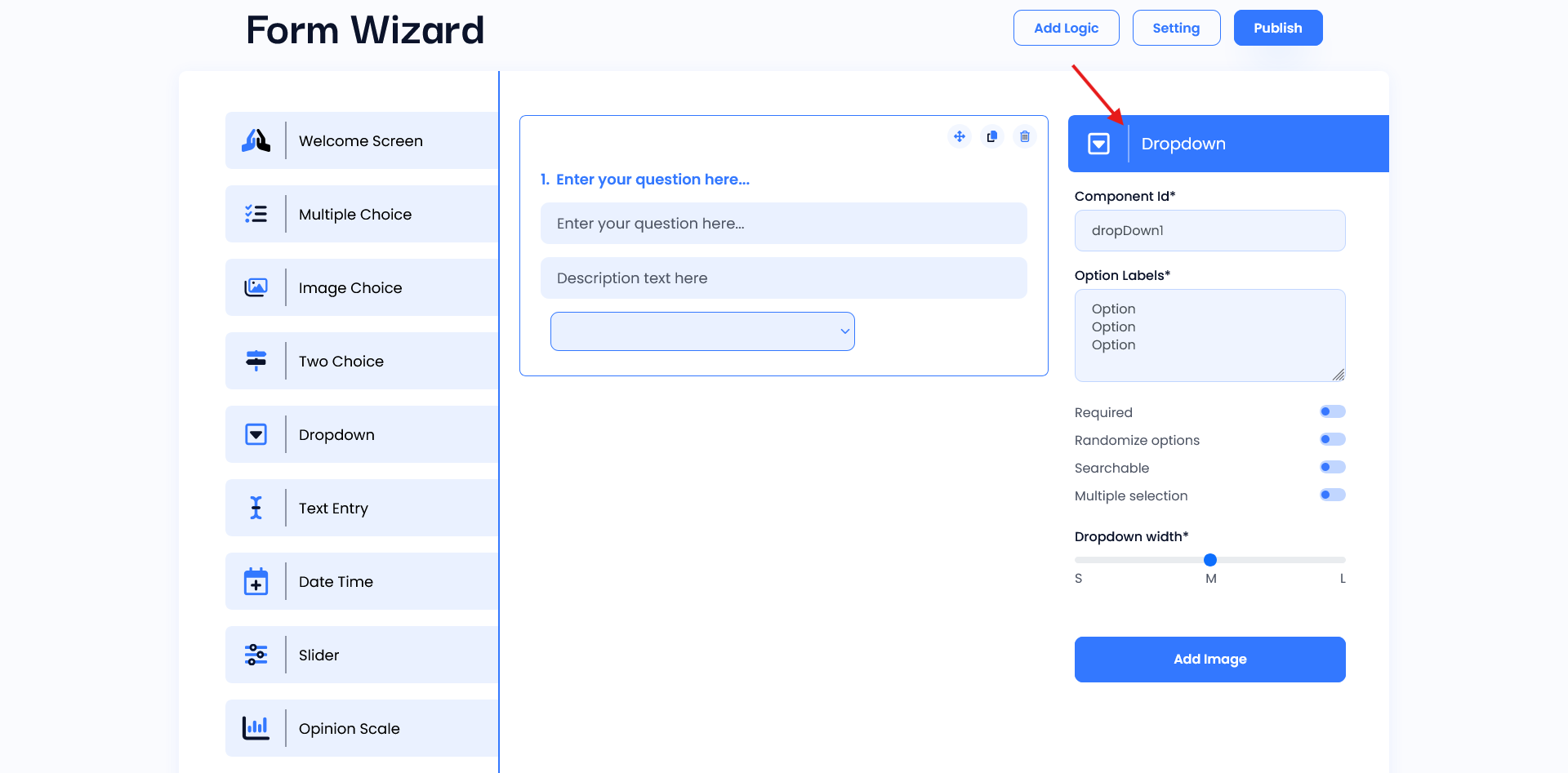
Dropdown
In the Dropdown Screen, you enter the main question and an optional description. Users can add options from the option field of the setting panel which is shown below the question fields.
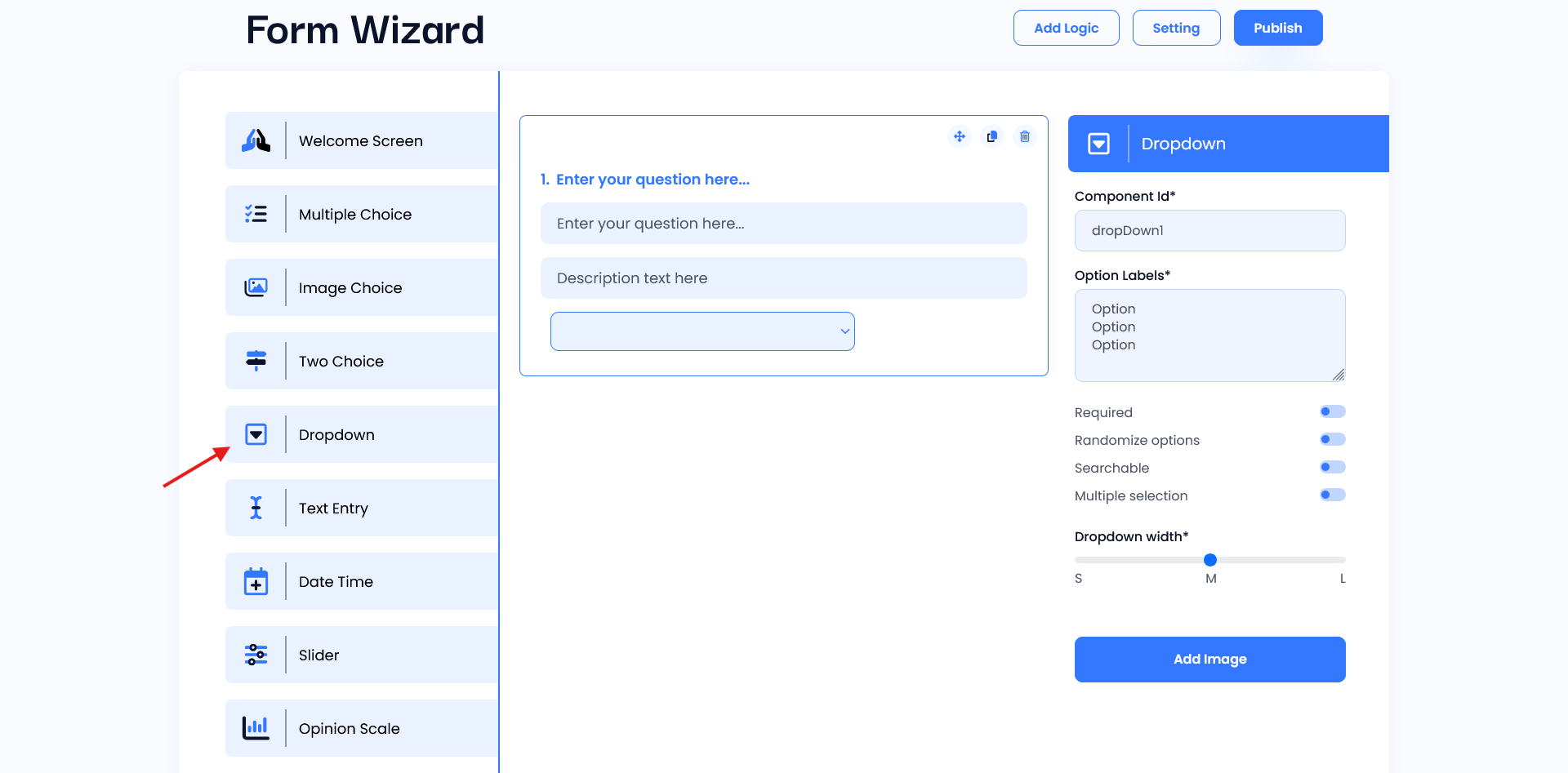
Setting
- Component ID: This field is where you assign a unique identifier to the dropdown component, which can be used for reference in code or data storage.
- Option Labels: In this text area, you can enter the options that will appear in the dropdown list. Each line represents a different option for users to select.
- Required: Toggle this option to make the dropdown mandatory, so users must choose an option before proceeding.
- Randomize Options: When this is enabled, the options will appear in a random order each time, helping reduce order bias.
- Searchable: Turning this on allows users to search through the dropdown options, which is useful for long lists.
- Multiple Selection: Enabling this allows users to select more than one option from the dropdown list.
- Dropdown Width: Use this slider to adjust the width of the dropdown to small (S), medium (M), or large (L) based on how wide you want it to appear.