Text Entry
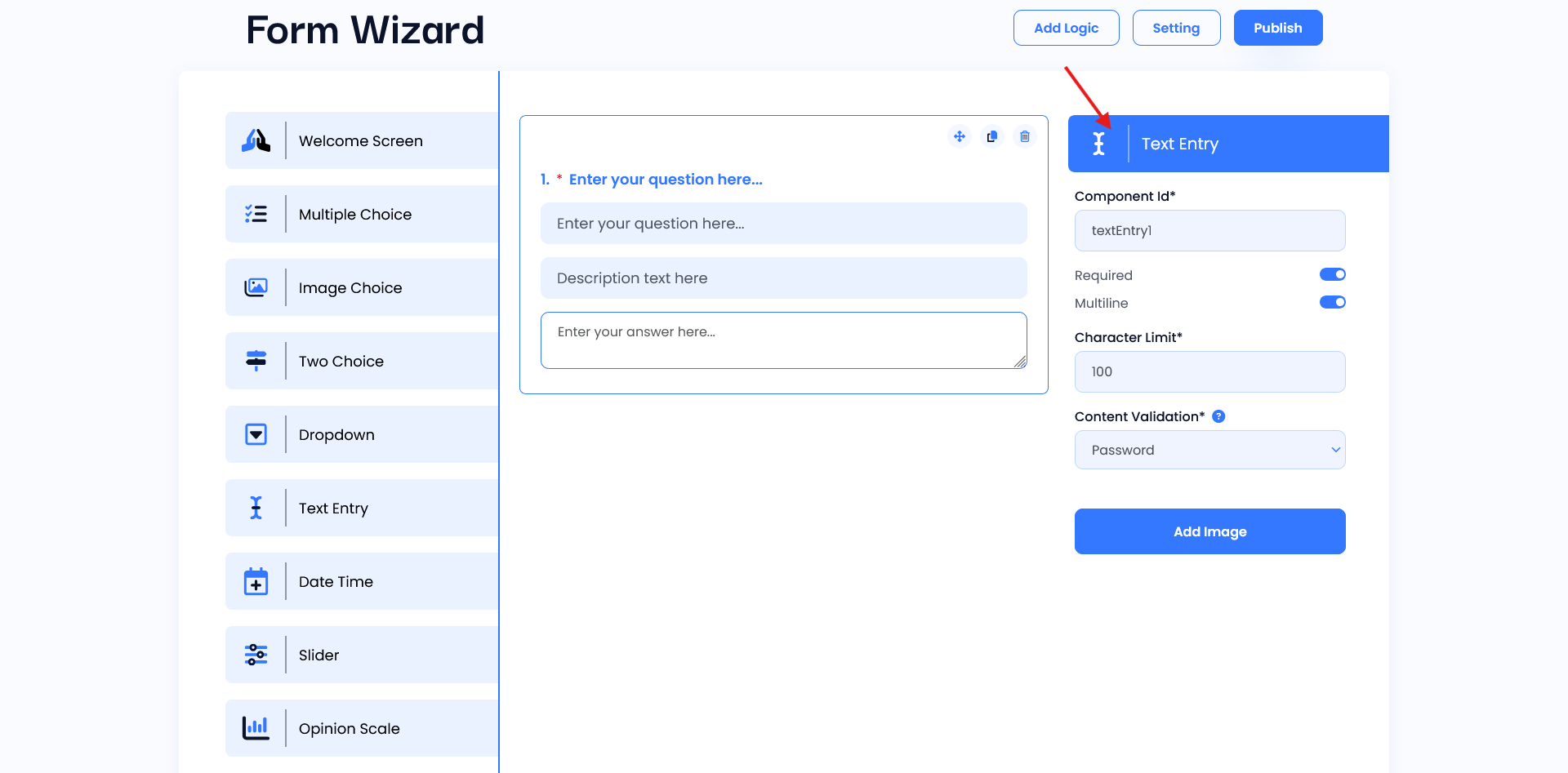
The text Entry widget provides a real-time preview. It allows users to see and test configuration changes instantly. There are two input fields: the first is for entering the main question, and the second is for an optional description to provide additional context or instructions. It simulates the end-user experience, helping to verify alignment, formatting, and functionality, while enabling quick adjustments for a seamless design process.
Setting
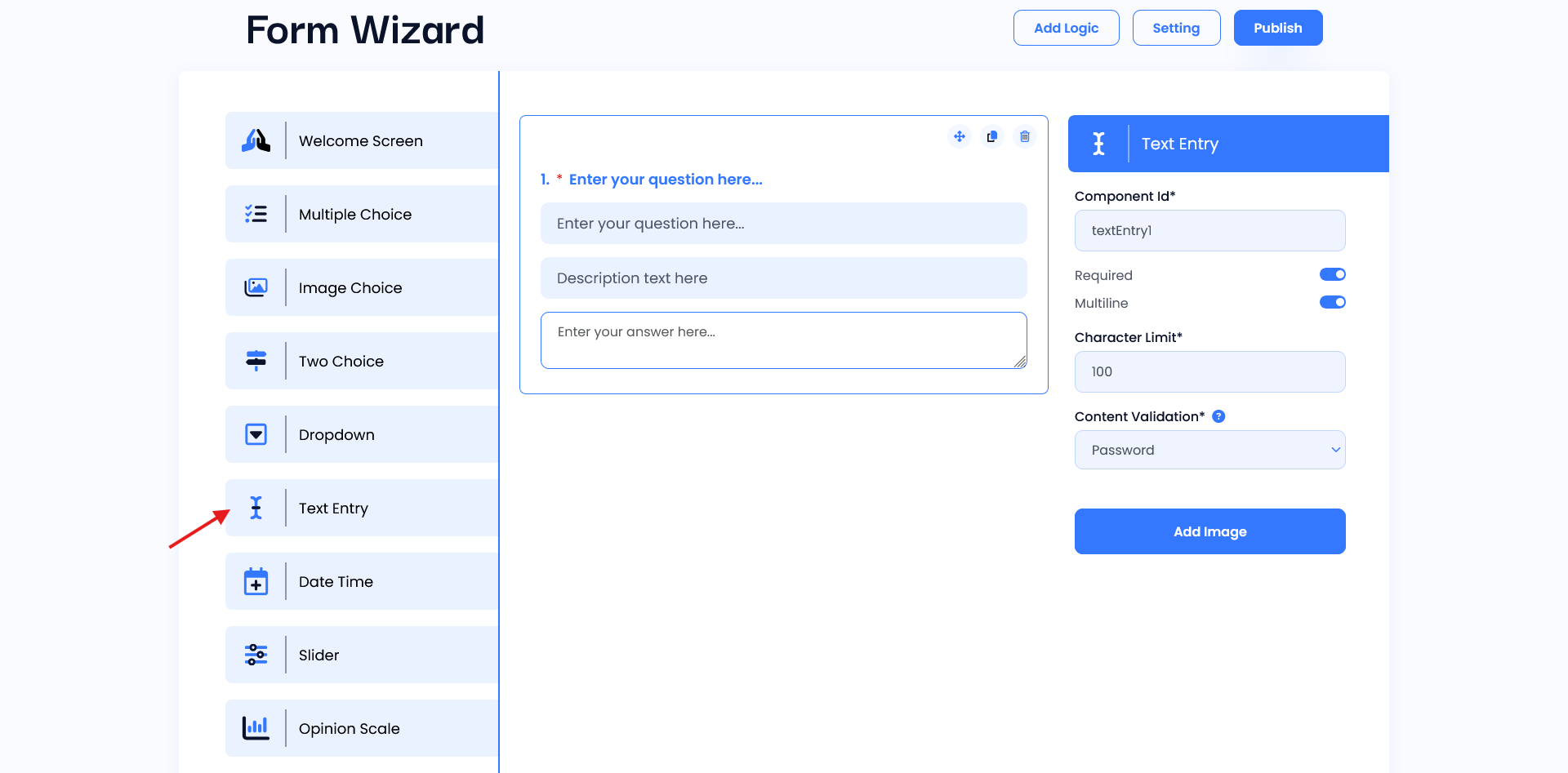
- Component ID: This unique identifier (e.g.,
textEntry1) is helpful for developers when referencing the widget in code, allowing them to capture or validate the input data for further processing. - Required Toggle: When enabled, this option makes the text field mandatory. Users cannot submit the form without filling in this field, which is useful for collecting essential information.
- Multiline Toggle: When enabled, this allows the text entry to span multiple lines, making it suitable for longer responses or detailed answers, like descriptions or comments.
- Character Limit: This setting restricts the number of characters users can enter (e.g., 100 characters).
- Content Validation: This dropdown provides options for validating the type of input (e.g., numbers, email, etc.), ensuring that the input matches the expected format.
- Add Image Button: This feature likely allows users to attach an image along with their text response, which can be helpful for submissions that require visual context.