Two Choice
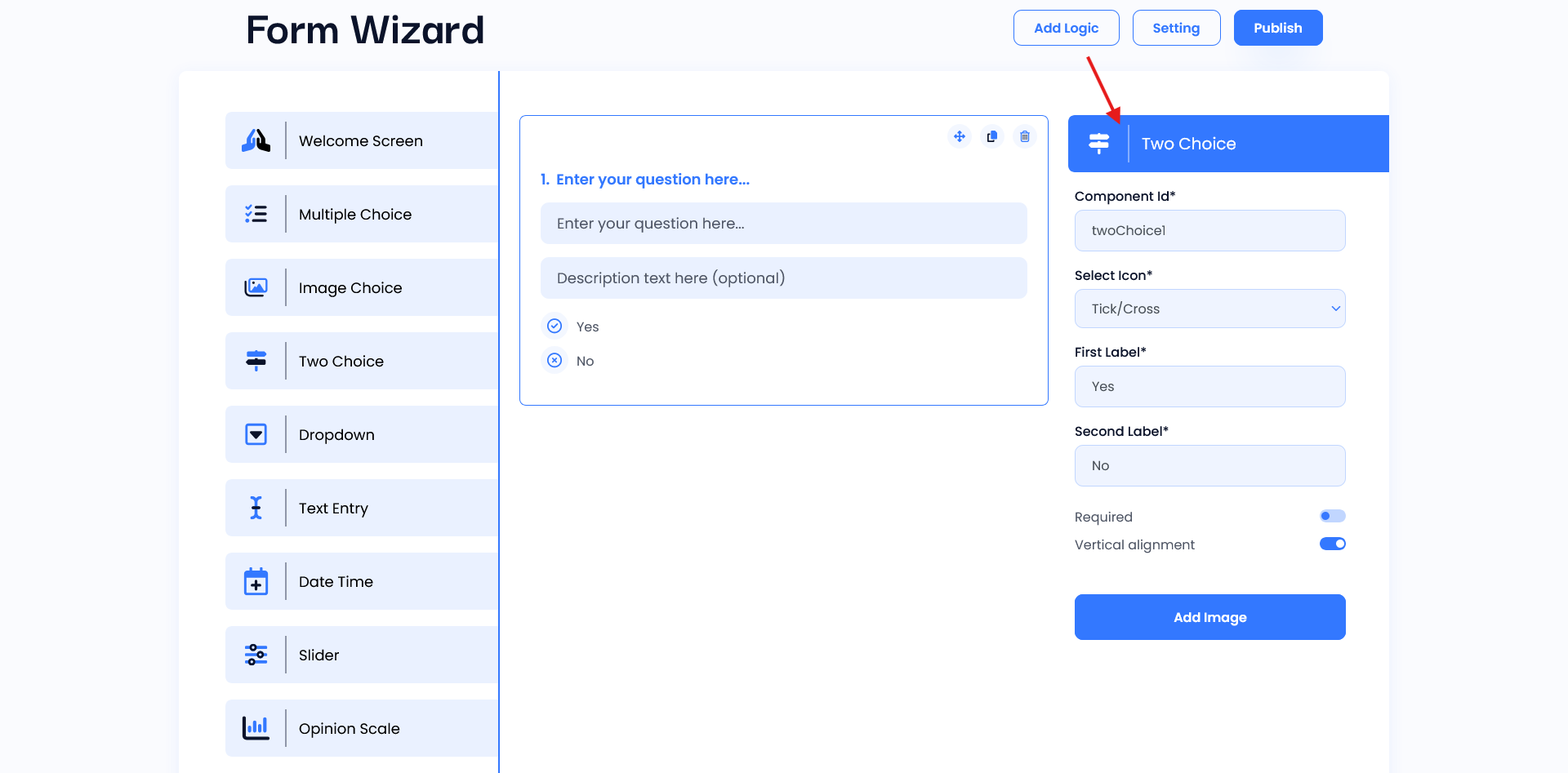
Uses of Two Choice screen where you configure the content of the two-choice question component. At the top, there is a heading labeled “Enter your question here…” which prompts you to type in the question you want to ask users. Below this, there are two input fields: the first is for entering the main question, and the second is for an optional description to provide additional context or instructions. Beneath these inputs are the two choice options (“Yes” and “No”) with corresponding icons (a tick for “Yes” and a cross for “No”).
Setting
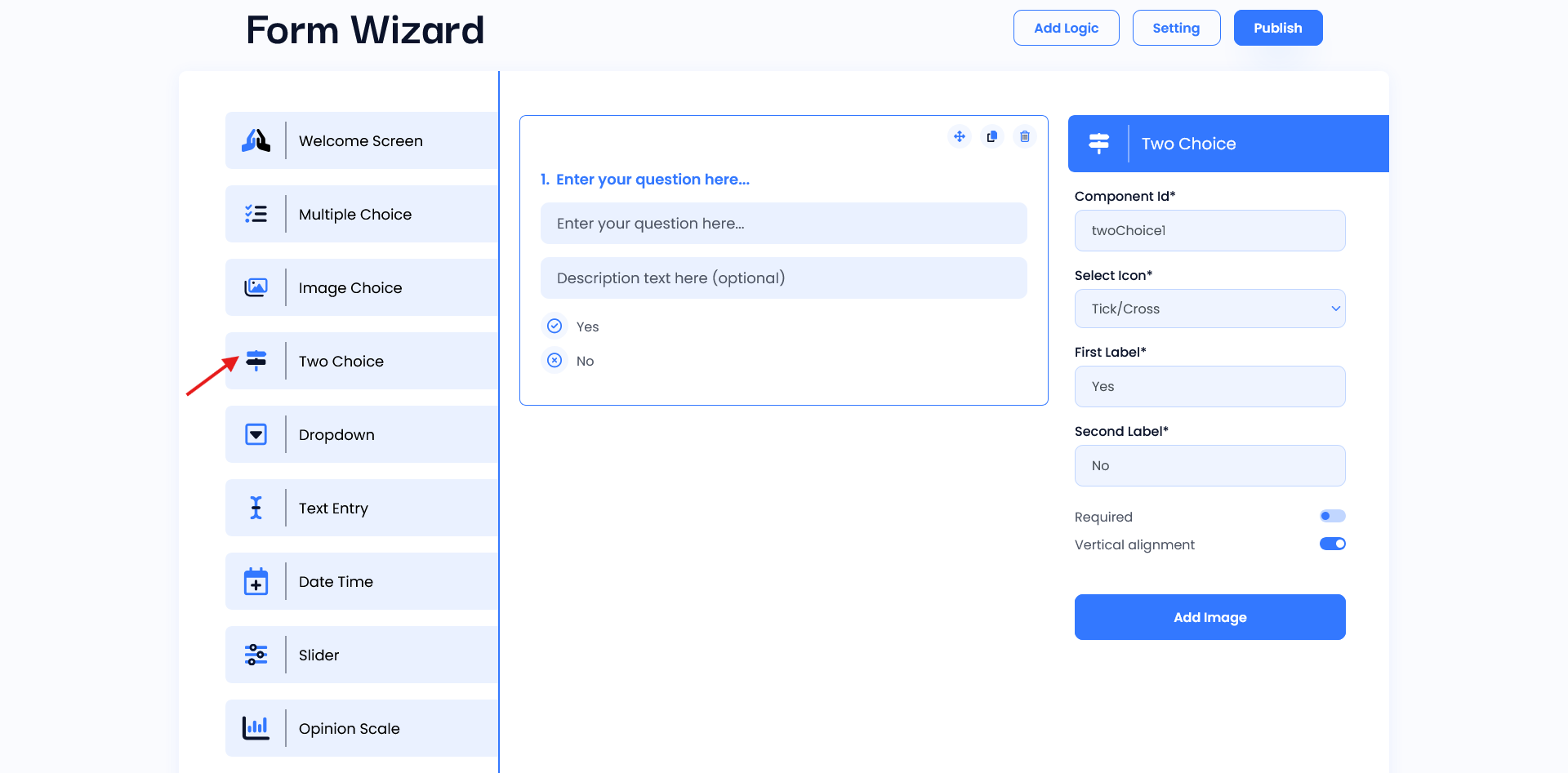
- Component ID: This field is where you assign a unique identifier to this component, which will be used for referencing it in your code or database.
- Select Icon: This dropdown allows you to choose the type of icon that will be displayed next to each option. In this case, “Tick/Cross” is selected, meaning a tick icon appears for the “Yes” option and a cross icon for the “No” option.
- First Label: Enter the label for the first choice option here. Currently, it is set to “Yes.” This label will be displayed next to the tick icon.
- Second Label: Similar to the First Label, this field is for setting the label of the second choice, which is set to “No” in this example. It appears next to the cross icon.
- Required: Toggling this option makes the field mandatory, meaning the user must choose an option before submitting.
- Vertical Alignment: Turning this option on changes the layout of the choices to display them vertically instead of horizontally.